Here you will find all you need to know about updates and support for NBS Contract Administrator
Issue
When opening up the NBS software on a high resolution monitor, the icons/windows within it appears very small and certain areas are not accessible.
Resolution
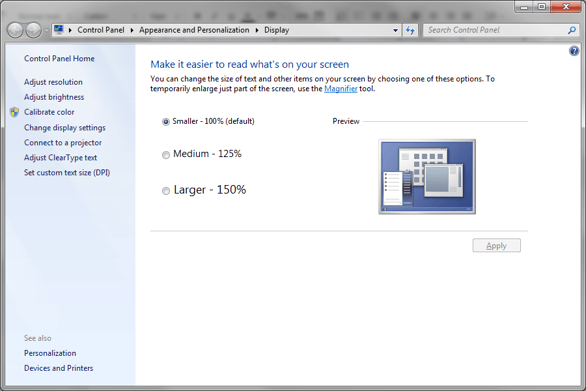
This issue is caused by a high screen resolution on a small physical display. This results in Windows applying text scaling to your screen. NBS Software is designed to work up to 125% text scaling, but recent hardware can see this set as high as 300%, causing display irregularities.
Should you encounter this, the solution is to turn down the text scaling. The below screenshots show the location of this in both Windows 7 and Windows 10:
Windows 7:
Windows 10:

Further Information
If the issue still persists, then please follow the steps below:- Locate the NBS software Desktop icon or browse to the .exe file via it's install path (e.g. for NBS Building, browse to C:\Program Files (x86)\NBS\NBS Building and locate the NBSBuilding.exe file) - right-click on the icon and click on Properties.
- Go to the Compatibility tab.
- Click on 'Change high DPI settings'.
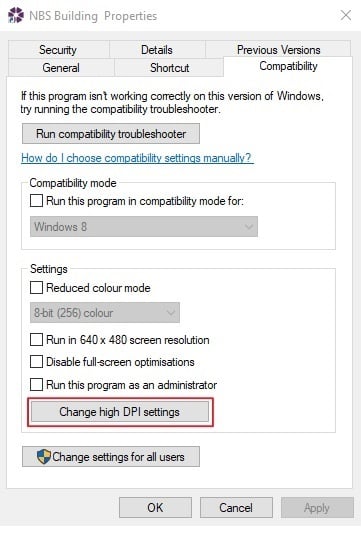
4. Tick the checkbox under 'Program DPI' for 'Use this setting to fix scaling problems for this program instead of the one in settings'. And select 'I open this program' from the drop down menu.

5. In the same window tick the check box for ‘Override high DPI scaling behaviour' - select 'Scaling performed by: System' in the drop down option.
5. Press 'OK’, then 'Apply' and 'OK’ again to close the properties screen.
6. Restart the NBS software.